Edit Your Cover Letter
Once you create a cover letter, you can edit and update it at any time.
CreatiCV provides a structured editor that helps you write and organize your cover letter step by step.
Open the Cover Letter Editor
Go to your Dashboard and click Cover Letters.
Then click the “+” card or select an existing cover letter to open the editor.
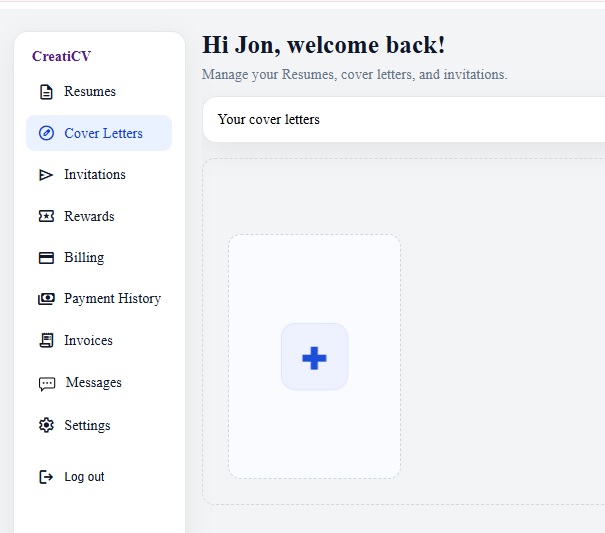
Page: Cover Letters Dashboard
Understand the Editor Layout
The Cover Letter Editor is divided into sections, including:
-
Personal
-
Recipient
-
Date and subject
-
Introduction
-
Current situation
-
Motivation
-
Closing
Click any section to expand and edit its content.
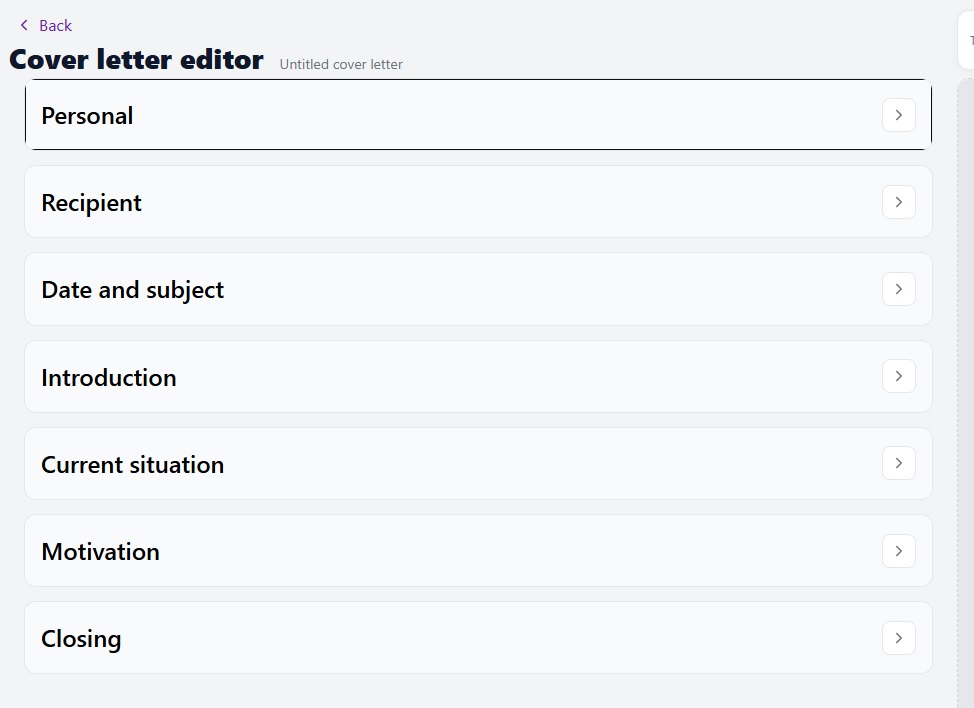
Page: Cover Letter Editor
Edit a Section
Click a section (for example, Introduction) to open it.
You can then write or update your content directly.
Your changes are saved automatically.
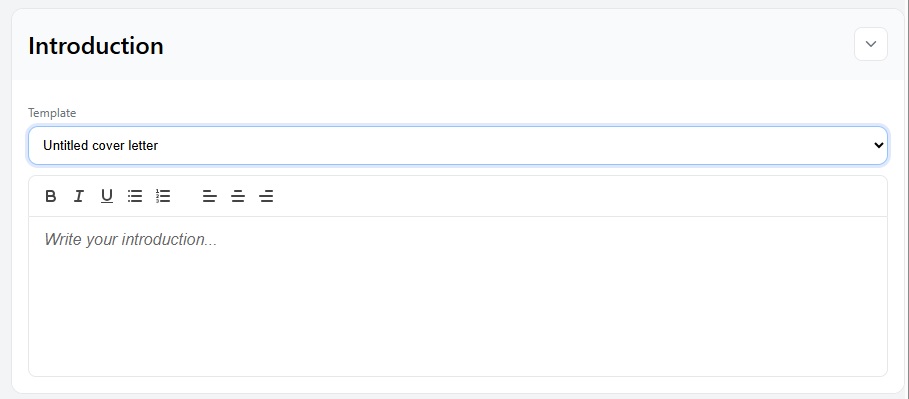
Page: Section editing
Use Templates in Each Section
Each section includes a template dropdown to help you get started quickly.
You can choose from options such as:
-
Standard application
-
Open application
-
Referred by someone
-
Response to job posting
After selecting a template, you can edit the text to match your situation.
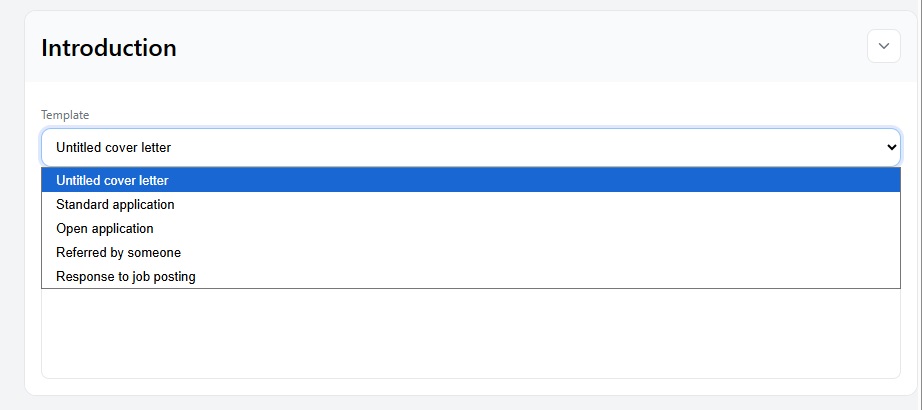
Page: Template dropdown
Keep Your Content Clear
When editing your cover letter:
-
Keep your writing clear and professional
-
Customize it for each job
-
Avoid copying your CV directly
What’s Next?
After editing your cover letter, you can:
-
Add and edit sections
-
Download your cover letter
-
Manage multiple cover letters